
10 Productivity Hacks Every Professional Should Know
Boost your focus and efficiency while saving time with these 10 productivity hacks for professionals.
Our products
The compliance platform built by our cybersecurity practice. Its built-in AI automates the gap analysis for NIS2 and the Czech Cybersecurity Act.
Ten practical tips for overcoming email overload and reaching inbox zero, with help from AI tools.

Inbox zero is a term that describes the state of having no unread or pending emails in your inbox. Achieving inbox zero can seem impossible, but the right strategies and tools can make email management more efficient. In this post, we’ll share effective strategies to help you manage email overload and achieve inbox zero, including how AI tools can help.
Use the hack we shared in the productivity best practices. If an email can be responded to or dealt with in two minutes or less, do it immediately. This prevents small tasks from piling up and taking over your inbox. The sooner you get rid of small tasks, the more focus you have left for the ones that matter.
Organise your inbox by creating folders and labels for different types of emails. For example, you can have separate folders for newsletters, project updates, and personal emails. Then, you can quickly move emails from your main inbox into the right folders.
Quick Tip: You can also create a label directly from an email by clicking the Labels icon, then Create new.
Use email filters to automatically sort incoming messages based on specific criteria such as sender, subject line, or keywords. This will help you prioritise important emails and keep your inbox organised. See how to create Gmail filters.
Instead of constantly checking your email throughout the day, schedule specific times to review and respond to emails. This will help you stay focused on other tasks and reduce the distraction caused by frequent email notifications.
Take a few minutes to unsubscribe from newsletters and promotional emails you no longer find useful. This will significantly reduce the emails you receive and help you maintain a cleaner inbox.
Tip: Most unwanted email comes from companies’ email marketing campaigns. To avoid the flood, set up a separate email account for sign-ups and newsletters. Don’t give away your primary email address.
AI tools can automate various aspects of email management. An AI email assistant can draft instant replies to routine inquiries and customer support emails and save you time and effort. To make your email responses sound natural and professional, choose a tool that lets you adjust their context, tone and length right in your inbox. AI Reply, the Gmail assistant we built, drafted replies and adjusted their tone and length inside Gmail.
Don’t let old emails clutter your inbox. Archive messages you’ve already dealt with but might need to reference later. This keeps your main inbox clean and reduces the time spent searching for specific emails.
If you find yourself repeatedly writing similar emails for meeting requests, follow-ups, and project updates, creating templates for these common emails can significantly reduce writing time and boost productivity.
How to Use Templates in Gmail:
Note: You can only turn on and use templates for Gmail on your computer.
Steps to Enable Templates:
Tip: An AI email assistant can help you generate and customise these templates further, so your emails are more personal without extra effort. If it lets you adjust tone and length, you can quickly adapt a template to different audiences.
Make it a habit to declutter your inbox daily. Spend a few minutes each day deleting unnecessary emails, archiving old messages, and organising new ones into folders. This daily practice will prevent your inbox from becoming overwhelming.
If you work with international clients and colleagues, an AI email assistant with multilingual support can be especially useful. It allows you to manage and respond to emails in multiple languages.
Achieving inbox zero is possible with the right strategies and tools. With these techniques and the help of AI tools, you can manage email overload and maintain a clean, organised inbox. Say goodbye to email stress and hello to a more productive workday!
Boost your focus and efficiency while saving time with these 10 productivity hacks for professionals.

A look back at Whirr Crew’s 2023: a growing team, more project work and clients in the United States and Europe.
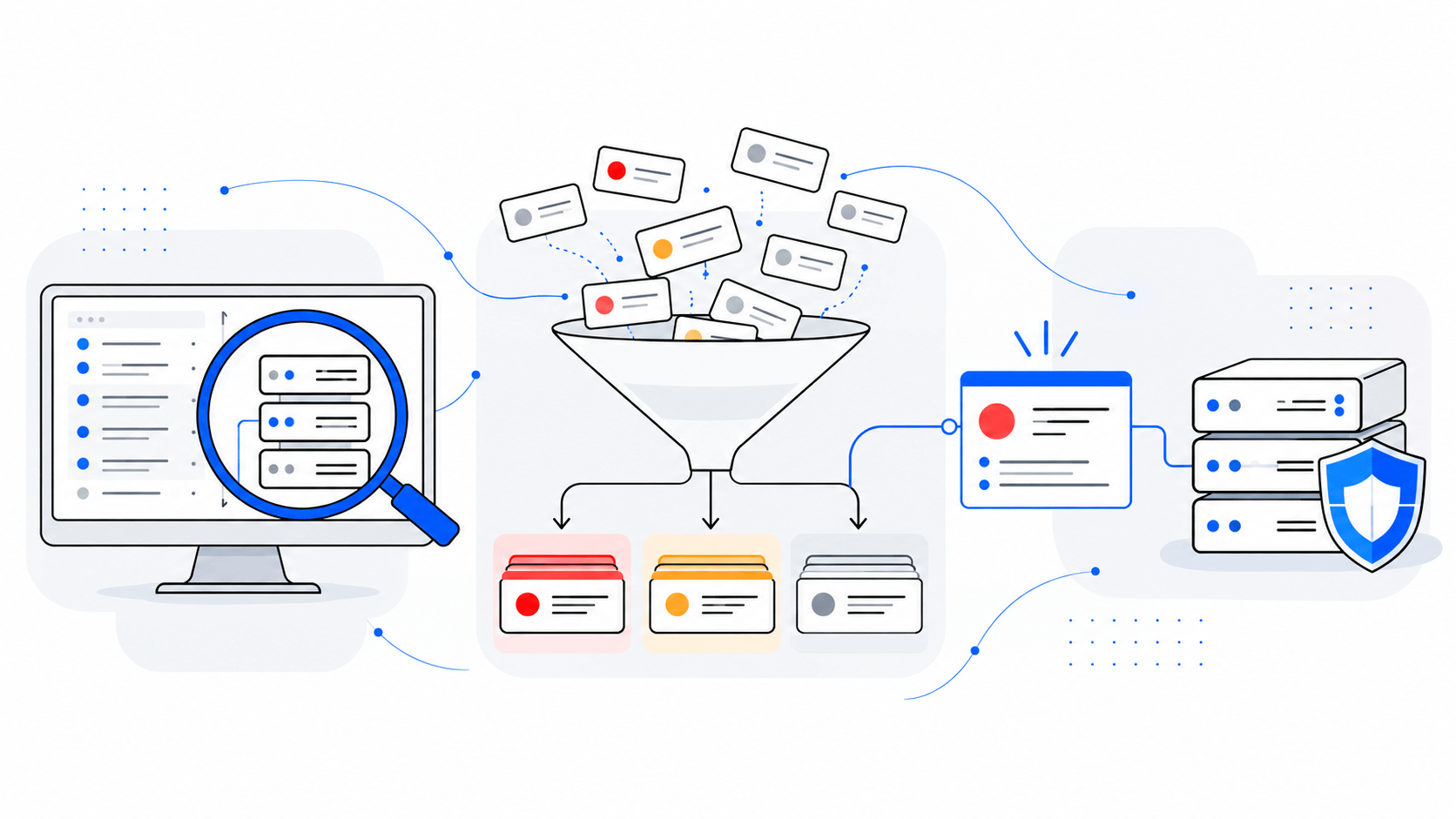
Decide what to fix first after a vulnerability scan. Prioritise findings by asset criticality, exposure and business risk, then verify remediation.
Tell us what you need to secure, automate, build or staff. A senior consultant will get back to you.
 Aleš PoláčekCEO, Whirr Crew
Whirr Crew s.r.o., Rybná 716/24, 110 00 Praha 1